Connect a custom domain and verify HTTPS
Publish the site first, then add a domain you own in the project’s Domains tab. Shipvela displays the DNS records needed to connect it and verify the managed certificate. This guide uses placeholders; no example domain has been connected.
Updated
Start with a working site and control of DNS
A custom domain adds a name to an already published site. First open the project’s default HTTPS address and verify the page. If that address is broken, diagnose the deployment before changing DNS; a domain cannot fix a missing build or a failing application.
- Have access to the Shipvela project and a domain you own. Custom domains and managed HTTPS are included on all plans, including Hobby; registration is separate.
- Identify the authoritative DNS provider. It may be different from the registrar where you purchased the domain. Changes in an unused DNS zone have no effect.
- Record existing website records and their TTLs before editing them. Keep MX, mail-related TXT, DKIM and unrelated service records intact.
- Decide whether you are launching a new site or replacing one with existing visitors. Keep the previous website and its routing values available during a planned cutover.
All names in this guide are demonstration placeholders. No domain was changed, certificate issued or live DNS response captured to produce this article. Copy the actual records from your own Shipvela project, not the example text.
Separate verification, routing, TLS and the page
| Layer | What it proves | What it does not prove |
|---|---|---|
| Certificate verification record | The certificate service can verify control using the issued record. | That visitor traffic already points to Shipvela. |
| Website routing records | The requested hostname resolves toward the issued website target. | That the certificate is ready or the intended page works. |
| HTTPS handshake | The certificate is trusted and valid for the requested hostname. | That the response contains the right application. |
| Rendered page | The expected content, assets and routes work at the custom URL. | That the other mapped hostname behaves the same way. |
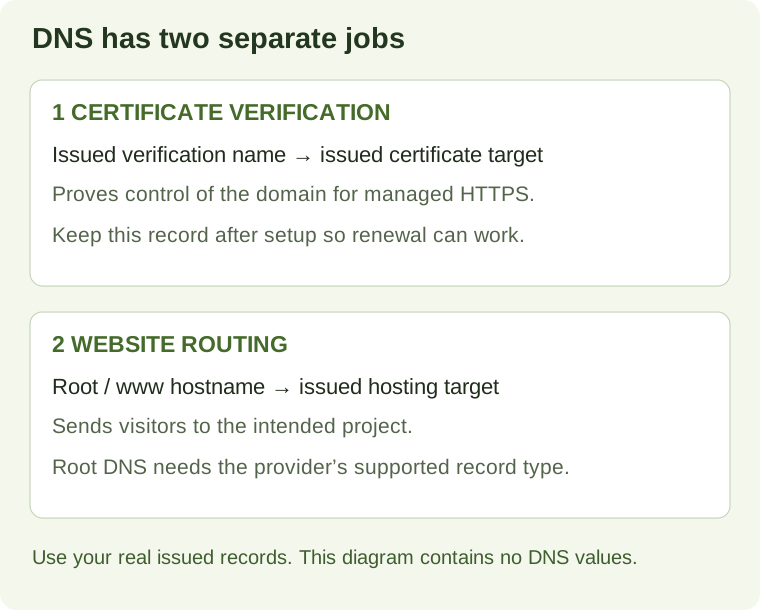
This distinction prevents a common mistake: replacing the website record with the certificate token. A verification CNAME often has an underscore-prefixed name; visitors do not browse to that name. Website routing applies to the root hostname and www. Keep a separate row for every record Shipvela shows.
1. Add the domain and copy the issued records
In the signed-in Shipvela project, open Domains. Enter the bare domain without a scheme or path, for example example.com, then choose Add domain. Replace that demonstration name with the domain you own. The current setup maps the domain root and its www hostname to the project branch.
Read the domain status, certificate verification record and each hostname’s routing record. If a record is still being prepared, refresh when it becomes available; do not invent a target or reuse one from another project. The CLI does not administer domains, so this part happens in the workspace.
| Purpose | Type | Name / host | Target / value |
|---|---|---|---|
| Certificate control proof | CNAME, as issued | The complete underscore-prefixed validation name | The complete issued verification target |
| www traffic | As shown by Shipvela | www hostname | The issued website target |
| Root traffic | Provider-supported apex mapping | Domain root, sometimes displayed as @ | The issued root website target |
Keep the full issued names in your notes even if the DNS provider’s form uses short names. The worksheet intentionally contains no target IP address or certificate token: those are project-specific.
2. Translate the records into your DNS provider’s fields
Open the provider that actually answers the domain’s authoritative DNS. Its form might label fields Type, Host, Name, Value, Content or Target. Translate the role of each field instead of assuming every provider has the same interface.
| Issued information | Possible provider input | Verification |
|---|---|---|
| _ISSUED_TOKEN.example.com as validation name | Full name, or only _ISSUED_TOKEN if the provider appends example.com | The final record must not become _ISSUED_TOKEN.example.com.example.com. |
| www.example.com as website name | www, or the full name where required | The record must be for the intended www hostname. |
| example.com as root | @, blank host or the full root according to provider docs | Use the provider’s documented apex mechanism. |
| CNAME target with trailing dot | Provider may accept or normalize the final dot | The resulting fully qualified target must match, without a duplicated domain suffix. |
| Verification CNAME | DNS record visible to public resolvers | Keep it as the issued DNS mapping; do not replace it with an HTTP redirect. |
An ordinary CNAME at the zone apex conflicts with records required at that name. Some DNS providers offer ALIAS, ANAME or CNAME flattening to map the root to a hostname. Confirm your provider’s supported method and use the issued target. Do not guess a fixed IP for a managed endpoint. If the provider cannot support the required root mapping, resolve that limitation before cutting over production traffic.
Do not replace nameservers just because a tutorial for another host does so. A nameserver change moves authority for the whole zone and can affect email and other services. Shipvela’s instructions here are for the specific issued records in your existing authoritative zone. AWS’s third-party DNS guide explains the underlying managed-hosting record types; you do not create an AWS resource yourself.
3. Plan an existing-site cutover
For a new domain with no traffic, there may be little to preserve beyond mail and other records. For an existing site, save the current website routing values and verify the new default URL first. Add the non-conflicting certificate verification record when issued, then follow the domain status and plan the website routing change. Do not assume the full setup can complete before routing changes or promise zero downtime.
TTL controls how long resolvers may cache an answer. If your DNS provider permits a lower TTL before a planned change, it can shorten the life of future cached answers; it does not erase answers already cached under the old TTL. Keep the old site available while relevant caches can still point there. Use your provider’s documentation for its minimum TTL and apex behavior.
If the cutover fails, compare the new records and status before making further changes. Restoring documented previous website routing may recover the old site, but DNS caches still apply. Avoid deleting the new domain association or unrelated DNS records as the first response to a page-level bug.
4. Check authoritative DNS before blaming propagation
The following commands are optional, read-only diagnostics for a terminal with dig and curl. Replace every demonstration hostname, including the authoritative nameserver, with actual values. These are procedural examples, not recorded successful DNS output.
dig +short NS example.com
dig @AUTHORITATIVE_NAMESERVER CNAME _ISSUED_TOKEN.example.com +noall +answer
dig +short CNAME _ISSUED_TOKEN.example.com
dig +short CNAME www.example.com
dig +short A example.com
dig +short AAAA example.com| Observation | Meaning and next check |
|---|---|
| Authoritative server lacks the new validation record | Check that you edited the correct zone, saved the record and used the right name. Waiting on a recursive cache cannot fix an absent authoritative record. |
| Authoritative answer is correct, normal resolver differs | Cached data may still be in use. Compare TTL and retry later rather than repeatedly changing a correct record. |
| Root has A/AAAA answers but no CNAME | This can be normal with apex flattening. Compare the provider’s apex configuration to the issued target. |
| www has a different target | Inspect conflicting or old website records; do not replace email records. |
| No output from +short | Not proof of successful setup. Check the query type, name and full dig response for missing names or DNS errors. |
Return to Domains and refresh. Inspect the displayed reason and mapped-hostname verification indicators. The target completion state is AVAILABLE. Certificate and hosting configuration checks happen asynchronously; no fixed number of minutes is guaranteed.
5. Validate HTTPS and the actual application
curl -I https://example.com
curl -I https://www.example.com
Run normal certificate validation; do not add -k to make an error disappear. A certificate mismatch, untrusted chain or handshake failure must be resolved. The header request helps inspect status and redirects, but some applications handle HEAD differently, and headers cannot establish that the correct page renders.
- Open both intended HTTPS hostnames in a browser and confirm the site identity and new content.
- Inspect any redirect destination. Mapping root and www does not itself guarantee a root-to-www canonical redirect.
- Load a direct application route and a local image. Check for mixed-content requests to http:// assets or APIs.
- Test third-party login callbacks, allowed origins and forms that depend on the new hostname. These settings belong to those services and may need an update.
- Keep the certificate validation record after setup. It can be needed for managed renewal. See ACM DNS validation.
Recover from the observed failure
| Symptom | Check | Recovery |
|---|---|---|
| Pending verification for a long time | Authoritative validation CNAME and full target | Correct missing/duplicated-suffix records. Keep valid records stable while checks run. |
| CNAME conflicts with another record | Existing records at that exact hostname | Identify the service first; use provider guidance to resolve the conflict without deleting unrelated mail records. |
| Certificate validation or CAA failure | Displayed status reason and CAA policy | Use the DNS/provider certificate guidance; do not remove a deliberate CAA policy without understanding it. |
| Domain status FAILED | Reported reason and current records | Fix the cause, use Retry domain setup, then inspect newly issued records. Retry may recreate the failed association. |
| AVAILABLE but wrong page | Default project URL and website target | Confirm project/branch and correct routing. A valid certificate is not proof of the right content. |
| Only root or only www works | That hostname’s own routing and certificate result | Check both mappings independently; do not infer one from the other. |
| Browser warns about mixed content | http:// request shown by the browser | Use working HTTPS asset/API URLs and rebuild if those values are bundled. |
For provider-specific reasons, consult AWS’s custom-domain troubleshooting. Keep any new issued validation value after a retry; an old screenshot may no longer describe the current association. When asking for support, include the domain status, sanitized record names/types and the failed layer, never account passwords or certificate private keys.
Completion and limits
- The default deployment address and the intended custom root/www addresses serve the correct site.
- The issued verification record remains in authoritative DNS and the domain is AVAILABLE.
- HTTPS validates normally and direct routes, images and external integrations work.
- Existing mail and unrelated service records are preserved; prior routing values are documented.
- Any desired canonical redirect is verified independently rather than assumed.
This workflow does not buy a domain, transfer DNS authority, configure mail or provide a universal DNS-provider UI. The diagram and worksheet are original instructional aids. Product steps were checked against the current Shipvela domain implementation and official provider documentation; no live DNS mutation or certificate timing test was performed.