Deploy a GitHub repository manually
Shipvela builds the GitHub branch linked to your project when you explicitly start a deployment. Pushing a commit alone does not publish it. This guide connects the repository, checks the revision, and starts one build.
Updated
Understand the three revisions
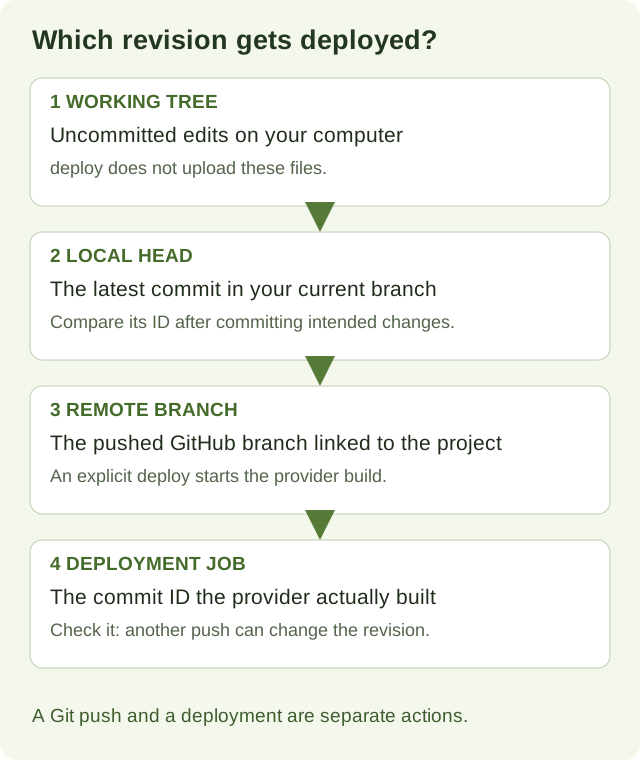
Your working files, the commit on GitHub and the commit built by the hosting provider can differ. Shipvela’s current GitHub workflow starts when you explicitly publish or redeploy. A successful push updates GitHub; it does not by itself prove that the website changed.
GitHub Pages is a separate hosting service with its own publishing source and Actions workflow. You do not need to enable Pages to connect a repository to Shipvela. Likewise, another host’s automatic push or pull-request preview behavior does not describe this manual workflow. GitHub’s Pages documentation explains that separate path.
Check the repository before import
| Setting | React/Vite example | What to verify |
|---|---|---|
| Project location | Repository root | package.json and build dependencies belong at root; workspaces and nested app roots are not supported by this workflow. |
| Package manager | npm | Commit package-lock.json. Do not combine npm with pnpm, Yarn or Bun lockfiles/packageManager settings. |
| Build script | npm run build | The script must generate static output successfully. |
| Output directory | dist | Use the actual configured outDir if changed; it must contain index.html. |
| Branch | main in this example | Use the branch linked to the Shipvela project, not necessarily your current feature branch. |
| Environment | Public values set before build | Local ignored .env files do not travel with a Git push. |
| SPA routing | Enabled for client-side routes | Check direct route loads after deployment. |
Use a repository you administer. Choose Connect with GitHub in Shipvela to connect and go straight to repository selection; Settings also shows the GitHub connection first. Your local Git credentials and Shipvela’s GitHub connection are separate: being able to push does not prove the hosting connection can read that repository. Keep organization access and the selected account in mind when an import fails.
Vite support here means a browser build, not arbitrary Vite SSR. TanStack Start, Remix, SvelteKit, Nuxt and unsupported server adapters are outside this contract. Build Astro or another static generator locally and use prebuilt upload. Next.js SSR is limited to supported versions 12–15 on paid plans, with framework-specific limits described in the docs.
1. Reproduce the build and push the source
Start in a clean clone of the intended repository. Inspect the build script and output, then build locally. The fixture linked from the React guide is a small root npm project if you want a disposable example; this guide does not create a GitHub repository for you.
git remote get-url origin
git branch --show-current
node --version
npm ci
npm run build
git status --short
A successful local build establishes a baseline, but the remote build still has its own environment. Make sure all required source files, imported assets and the lockfile are committed. Keep node_modules, dist, local credentials and ignored local environment files out of the source commit. Use your normal review process to commit intentional changes, then push the selected branch.
Replace main with your actual production branch
git push origin mainPush the source before importing: detection reads the remote repository. If you changed package.json only on your laptop, the remote detector cannot see that change. See GitHub’s push reference for authentication or rejected-push problems; do not force-push over someone else’s changes just to deploy.
2. Import once and verify the project link
For browser import, select your repository and review Configure project: production branch, framework, build command and output directory. Add any required environment values in the optional editor. Create project saves those settings together without starting a deployment. For CLI import, use the commands below; if you already created the project in the browser, link it instead of creating a second one.
shipvela login
shipvela init --name my-github-site
Install the CLI first using the setup docs. Init detects the remote repository and settings, creates the project and writes shipvela.json; it does not deploy. Review repository, branch, framework, build command, output directory and SPA setting in the project workspace. If detection is rejected, fix the reported repository limitation rather than guessing a different framework.
If a Shipvela project already exists, use shipvela projects and shipvela link --project PROJECT_ID with its actual ID. Avoid running init again. A link identifies a deployment target; changing origin alone does not update that target.
git add shipvela.json
git commit -m "Link Shipvela project"
git push origin main
Commit the generated project link so it does not leave an untracked change that blocks the CLI’s clean-worktree check. Skip this commit if the link is already committed and unchanged. Do not use git add . to sweep unrelated local files into the deployment commit.
Before the first deployment, confirm required build values were saved during Configure project, or add them in the project’s Environment tab. CLI-created projects use that tab. Use the Vite environment guide to distinguish public frontend configuration from server secrets. Saving values after a build does not rewrite its output.
3. Compare local HEAD and the remote branch
git status --porcelain
git remote get-url origin
git branch --show-current
git rev-parse HEAD
git ls-remote origin refs/heads/main| Command | Expected result |
|---|---|
| status --porcelain | No output: no tracked edits or untracked files requiring attention. |
| remote get-url origin | The repository linked in Shipvela. Check owner and repository, not only a familiar name. |
| branch --show-current | The linked branch; an empty result may mean detached HEAD. |
| rev-parse HEAD | Your local full commit hash. |
| ls-remote origin refs/heads/main | A hash plus refs/heads/main; the hash should equal local HEAD. Empty output means that reference was not found. |
The Git ls-remote reference describes the remote query. Matching hashes establishes what was pushed at the moment of the check. It does not lock the branch: another collaborator can push before the provider checks it out. Record the expected hash and verify the job’s commit after starting the build.
4. Explicitly start one deployment
shipvela deploy --wait --jsonThe CLI checks the clean worktree, origin repository, branch and remote commit before requesting the build. With --wait it watches the specific job it started. A successful JSON result includes a job with status SUCCEED and a returned URL. Treat pending or running as unfinished, and preserve the numeric job ID for diagnosis.
In the signed-in workspace, Publish project starts the initial deployment and Redeploy starts a later one. Those browser actions build remote source too; they cannot see uncommitted local edits. This guide does not assume automatic push deployments, pull-request previews or an instant rollback feature.
shipvela status --json
shipvela logs --job JOB_ID --json
Replace JOB_ID with the actual numeric job ID. Compare the job commitId with your expected commit, not just the latest status label. If it differs, inspect the branch history and identify who pushed what before deciding which revision to deploy next. Do not report an exact-revision release until that comparison is resolved.
5. Verify the public result and repeat an update
- Open the returned URL and check a visible value tied to your reviewed source, such as a changed heading or version label.
- Load a client-side route directly in a fresh tab and refresh it. Check image and JavaScript requests if the page is blank.
- Exercise forms, authentication callbacks and external API calls separately. A successful frontend build cannot prove that another backend is configured correctly.
- For the next release, commit and push the reviewed change, repeat the revision check, then explicitly deploy again.
If a recent source change caused a problem, use your normal review process to revert or fix it, push the corrective commit and start a new deployment. That is a new build, not a promise that Shipvela retains an instantly restorable artifact. Keep the previous job ID and source revision in your release notes.
Diagnose the failed stage
| Symptom | Read-only evidence | Next action |
|---|---|---|
| Repository or branch not found | Origin, linked branch and account/repository permissions | Reconnect GitHub in Settings and confirm that connection can administer/read the intended repository. |
| Local changes are not published | git status --short | Review and commit intended changes, including a new shipvela.json, then push. |
| Local HEAD differs from GitHub | Local hash and ls-remote hash | Push the intended commit or update the local clone through the normal team workflow. |
| Wrong repository or branch | Origin and project link versus current branch | Switch to the intended clone/branch or deliberately relink the correct project. |
| Dependency install fails | First install error, package.json and lockfile | Reproduce npm ci, fix the dependency/lockfile mismatch, commit and push. |
| Build fails | First substantive build error, script and variable names | Fix source or required build configuration. A later “build failed” line is only the summary. |
| Build succeeds but output missing | Configured output directory and generated files | Correct outDir/output mapping; ensure a real static index.html exists. |
| Wait times out | Specific job ID, status and logs | Check the existing job before starting another. |
| Site is old or blank | Built commit, visible version, asset requests and base path | Confirm correct revision/output, then diagnose routing/assets using the React guide. |
A build log can contain application output. Share only the relevant error lines and variable names; remove credentials and private URLs before posting logs publicly.
Local regression evidence and limits
| Fixture state | Observed result |
|---|---|
| Clean, committed and pushed | Passed local Git checks and reached the synthetic deployment API. |
| Uncommitted tracked edit | Rejected before deployment. |
| New local commit not pushed | Rejected because local and remote hashes differed. |
| Different current branch | Rejected branch mismatch. |
| Different origin repository | Rejected repository mismatch. |
These checks used real Git commits and a local bare remote. A test wrapper directed the remote lookup to that bare repository, while an offline adapter returned synthetic API responses. They test CLI decisions, not GitHub connectivity or a real provider build. No live deployment was performed for this guide.
--allow-remote deliberately skips local Git checks and builds the current remote branch. It neither uploads local files nor pins your local HEAD. Use it only when that remote-source behavior is the intent, such as a separately reviewed automation workflow. Do not add it merely to make an unexplained mismatch disappear.