Diagnose a failed Vite deployment from the first error
A deployment can fail before the build starts, while dependencies install, during compilation, during upload or after the page opens. Find that boundary first. This guide uses deliberately broken local examples with recorded command results, then maps each result to the relevant Shipvela check.
Updated
Locate the first failed stage
Save the exact job identifier and read the first actionable error above the final “build failed” summary. A failure banner often reports only that a subprocess exited. Keep the selected repository branch, expected commit, build command, output folder and runtime version alongside the error. Remove environment values and credentials before sharing logs.
| Stage | Evidence | What to inspect |
|---|---|---|
| Admission or project setup | The project is rejected before a provider job exists. | Framework, npm lockfile/packageManager, repository root and supported version. |
| Dependency installation | npm ci exits before vite starts. | Committed lockfile, dependency versions, registry access and Node engines. |
| Compilation | Vite starts, then reports a missing entry, import or syntax error. | The first source path named in the error and the actual build script. |
| Artifact selection or upload | Build exits zero, but expected output is absent or rejected. | Configured outDir versus the folder being uploaded; static archive limits. |
| Deployment job | Provider returns FAILED/CANCELLED or the CLI wait times out. | Exact job status and logs; do not assume a timeout means the job stopped. |
| Browser runtime | Job succeeded, but a page or request fails. | Network and console evidence, route fallback, asset URLs and public environment values. |
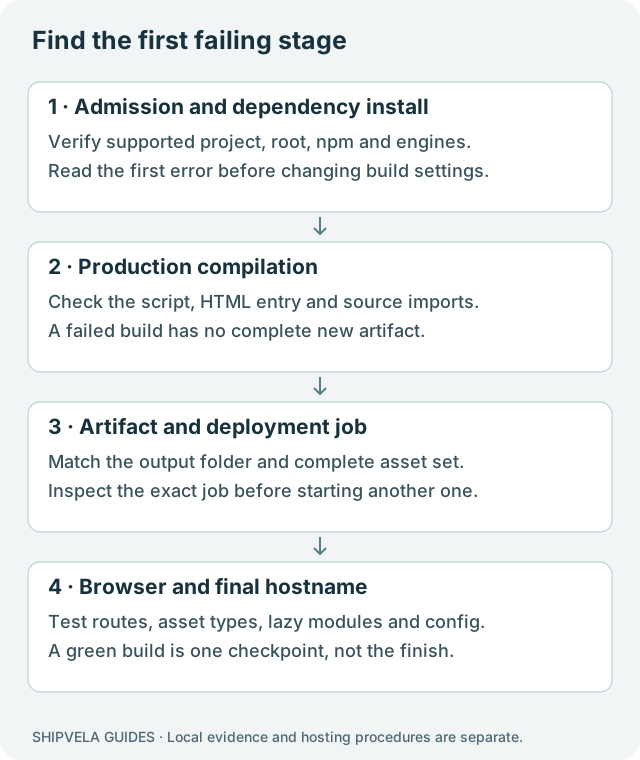
If the symptom is specifically a browser message about dynamically imported modules, use the runtime guide. If only refreshing a nested route fails, use the routing guide. Do not rerun dependency installation for an unrelated hosting rewrite problem.
Reproduce the build in a disposable working copy
Start with the same commit and npm lockfile that the remote job was supposed to build. Use a new directory for diagnosis so deleting generated output cannot remove unrelated files or a previously working artifact. Confirm the current directory before running installation: npm ci replaces that directory’s node_modules.
Existing-project diagnostic procedure; run at the intended npm project root
node --version
npm --version
npm pkg get scripts engines packageManager
git rev-parse HEAD
git status --short
npm ci
npm run build
For the downloadable runtime lab, installation needs no lifecycle scripts, so its README uses npm ci --ignore-scripts. An existing application may require legitimate install scripts; follow that repository’s documented setup. Avoid changing several dependency versions while trying to reproduce a single failure.
The lab was tested with Node 22.20.0, npm 10.9.3, Vite 8.3.1, React 19.3.0 and Router 7.18.4. These are recorded versions, not an instruction to downgrade your app. Current Vite has runtime requirements that differ from old Vite tutorials; check Vite’s getting-started requirements and the engines of your dependencies.
Shipvela cloud builds currently support npm projects at the repository root. A package nested under apps/web, a pnpm/yarn/bun lockfile, or an unsupported server framework is not made compatible by changing the output folder. Prebuild a genuinely static artifact locally and use the CLI where appropriate, or keep a suitable host for the required runtime.
Check whether the selected build script exists
The second command deliberately fails in the lab
npm pkg get scripts
npm run not-a-build
The recorded result exits non-zero and includes Missing script. Recover by selecting the script actually defined in package.json. In the lab the script is build: vite build, so npm run build is correct. Do not replace it with npm run dev: a development server can keep running without producing the expected production folder.
The relevant production script shape
{
  "scripts": {
    "build": "vite build",
    "preview": "vite preview"
  }
}
If your build script chains a type checker, generator or linter before Vite, read that earlier tool’s error first. A TypeScript error is not repaired by changing SPA routing. Preserve the project’s meaningful checks; skipping them can hide the defect until production.
Distinguish a missing lockfile from a compiler error
npm ci expects an npm lockfile and a compatible package manifest. In a disposable empty project without package-lock.json, the lab’s npm ci check exits non-zero before Vite runs. The error refers to the required lockfile. npm ci documentation explains why it is designed for a reproducible install rather than rewriting dependency choices.
| Evidence | Recovery | Avoid |
|---|---|---|
| No package-lock.json in the intended root | Generate and review an npm lockfile locally, test a clean install, then commit it with package.json. | Committing an unrelated package manager’s lockfile and calling it npm support. |
| Manifest and lockfile disagree | Use the intended npm/runtime setup to resolve the change locally; inspect the diff and commit both files. | Editing the lockfile by hand or asking CI to silently choose new versions. |
| Engine warning or unsupported Node error | Compare node --version with Vite and dependency engines; use a compatible supported runtime. | Assuming a successful development session proves the remote runtime matches. |
| Registry authentication or network failure | Check access to the exact dependency in the build environment. | Pasting registry tokens into frontend variables or public logs. |
A lockfile failure does not require deleting the project or rebuilding the account. Repair the dependency inputs, then retry a clean local install and production build. A newly generated lockfile should be reviewed like a code change.
Resolve entry files and imports using the first named path
Vite normally starts from index.html in the project root. Running the compiler from a directory without that entry fails. If the file exists in a different directory, decide whether you are in the wrong root or using a deliberately configured Vite root. Shipvela’s current GitHub flow does not offer arbitrary monorepo-root selection.
Deliberately broken import appended by the local test, then removed
import './missing-file.js';The test adds that line to the lab’s main.jsx and runs npm run build. Vite reports the unresolved module and returns a non-zero exit code. The test restores the source in a finally block and verifies a clean build afterward. This is a synthetic defect, not a customer incident or a captured provider log.
- Read the import exactly as written and locate its target relative to the importing file.
- Check filename capitalization. A case-insensitive development filesystem can hide a mismatch that fails on a case-sensitive builder.
- Check that the file was committed rather than merely created locally or excluded by .gitignore.
- If the import is a package name, confirm it belongs in dependencies and is present in the committed lockfile.
- If the error occurs in a generated file, fix the generator input or required generation step; do not patch only an ignored build artifact.
The local suite did not run on a Linux filesystem, so it does not claim a reproduced case-sensitivity failure. That diagnostic is supported by Vite’s troubleshooting documentation. On case-insensitive systems, a two-step git mv through a temporary filename can record a deliberate case change; verify the resulting Git diff before committing.
A successful build can still point at the wrong folder
The last command deliberately exits non-zero; use only the lab’s generated directories
npm run build -- --outDir dist-custom
node scripts/inspect-output.mjs dist-custom
node scripts/inspect-output.mjs nonexistent-output
The first command succeeds and creates dist-custom/index.html. The inspector succeeds for that directory and fails for a missing output. If your Shipvela setting still points to dist while the build writes elsewhere, deployment may select no files or an old artifact. In a clean working copy, verify the exact output rather than trusting a stale directory left by an earlier build.
| Check | Expected result | If it fails |
|---|---|---|
| Output directory | Matches the configured build.outDir or framework output. | Correct the build setting or build configuration; rebuild. |
| Entry document | index.html exists at the archive root for a static upload. | Do not upload the parent directory or source tree. |
| Referenced assets | Files referenced by HTML exist in that output. | Repair base path/build input or publish the complete artifact. |
| Static-only contents | No required server process is being mistaken for browser files. | Select the supported runtime path or produce a genuine static export. |
| Public configuration | Only intended public values appear in generated code. | Fix build inputs and rebuild; revoke any exposed credential. |
The CLI validates its static archive, including file-count/size and entry requirements. It rejects source roots and symlinks; that validation is not a comprehensive secret scanner. A VITE_ value used by your app can be embedded in the public bundle. The environment guide demonstrates this with harmless values.
Retry only the stage that actually needs a retry
For GitHub deployments, commit the verified source and lockfile fix, push it to the configured branch, then trigger deployment explicitly. A push by itself does not publish on this release. Compare the deployment job’s built commit with the revision you intended, particularly if someone else can push to the same branch.
For prebuilt uploads, rebuild locally and check shipvela.json before publishing to the linked project. The CLI command below is procedural; this guide did not run a real upload or provider job.
Use an actual job identifier from your project, not the placeholder
shipvela status --json
shipvela logs --job JOB_ID
# After a verified local rebuild, for the intended linked upload project:
shipvela publish dist --json
If a CLI wait times out, inspect that exact job before starting another deployment. It may still be running. If the provider reports failure, retain its first actionable log entry. Repeatedly clicking Deploy cannot fix a missing source file, and a new job can make it harder to see which artifact is currently live.
Configure env can supply build values during project setup; Environment can update them later. Saving a value does not rewrite an existing Vite bundle. A GitHub build needs a new explicit deployment, while a prebuilt upload needs a local rebuild with the intended values.
Define success beyond a green build log
- A clean install and production build of the intended commit finish successfully.
- The configured output directory contains the current entry HTML and all referenced assets.
- The deployment job corresponds to the intended project and revision and reaches a terminal successful status.
- The public homepage, a nested route and a lazy feature work in a fresh browser context.
- The release does not expose a private credential or rely on an unsupported server component.
The recorded local suite covers missing npm script, absent lockfile, missing HTML entry, unresolved source import, custom output selection and recovery to a clean build. It does not establish a live provider’s root cause, Linux behavior or cloud runtime configuration. If these local checks pass but the remote job still fails, share the redacted first error, runtime, commit and build settings through the support contact in the docs, rather than a full environment dump.